Last Updated on August 12, 2025 by Gill
Remember the last time your gaming session turned into a slideshow? That stutter during a critical headshot or render job isn’t just annoying—it’s your rig crying for help. Dust-choked components work harder, sound louder, and risk permanent damage every time you push them.
Your graphics card’s cooling system acts like a marathon runner’s lungs. When dust coats the blades and vents, airflow weakens. Temperatures spike. Before you know it, you’re facing thermal throttling—your hardware literally slowing itself down to survive.
But here’s the good news: A little maintenance goes a long way. This guide isn’t about harsh scrubbing or risky disassembly. We’ll focus on safe, effective methods that protect delicate circuits while restoring peak performance. Whether you’re rocking a decade-old workhorse or the latest RTX beast, these steps work.
Neglect costs more than you think. Overheating shortens component lifespans. Dust bunnies morph into fire hazards. And let’s be real—nobody wants their $1,500 investment sounding like a jet engine during Zoom calls.
You’ll learn to spot early warning signs, choose the right tools, and decide when to DIY versus call a pro. Let’s give your machine the breath of fresh air it deserves.
Understanding GPU and Fan Dust Buildup
Silent components today could mean screaming fans tomorrow if dust takes over. Every computer acts like a vacuum. Fans pull air through vents to cool components, but this airflow brings dust. Over weeks, particles stick to fan blades and heatsinks.
Graphics card heatsinks work like miniature air filters. Their tight fins trap hair, lint, and floating debris. When these pathways clog, heat gets trapped. Your system then runs hotter than its design specs—sometimes 10-20°F over normal.
Dust-covered fans face two problems. First, uneven buildup makes them wobble like unbalanced tires. Second, sticky residue increases friction. Both issues force motors to work harder, creating that familiar whine during gaming marathons.
Environments matter more than you think. Homes with shedding pets add fur to the mix. Carpets release fibers that hitch rides on airflow. Even your AC vents contribute microscopic particles that settle on electronics.
Modern hardware protects itself through thermal throttling. When temperatures spike, your graphics card slows down to avoid meltdowns. This safety feature saves components but kills frame rates in demanding apps.
Spotting trouble early saves money and headaches. Listen for changing fan pitches. Watch for sudden temperature jumps in monitoring software. Notice shorter times between performance drops during extended use.
Gathering the Right Tools and Precautions
The right toolkit transforms a nerve-wracking task into a smooth operation. Before touching any components, create a clean workspace free from carpets or fabrics. Static electricity poses invisible risks—always ground yourself by touching your system case before handling parts.
Essential Tools
- Compressed air canisters blast dust from tight spaces without physical contact
- Anti-static brushes with horsehair bristles gently lift debris from delicate circuits
- Microfiber cloth removes fingerprints from fan shrouds without scratching surfaces
- Medical-grade cotton swabs reach between heatsink fins better than standard Q-tips
- A precision screwdriver set prevents stripped screws during disassembly
Safety Measures and Static Considerations
- Power down completely and wait 15 minutes for components to cool
- Work on wooden surfaces instead of plastic tables to reduce static buildup
- Store loose screws in magnetic trays to avoid losing critical hardware
- Use 90% isopropyl alcohol—it evaporates in seconds, preventing moisture damage
- Keep pets and beverages away from your workspace during the entire process
Quality tools pay dividends. Cheap compressed air cans might spit liquid refrigerant, while dollar-store brushes could shed bristles inside your system. Invest in a proper screwdriver with magnetic tips—they’re lifesavers when reassembling tiny fan screws.
Disassembling the GPU: Tips for Safe Handling
Ever wondered what’s under that metal plate keeping your graphics card cool? Proper disassembly requires precision and care. Let’s break down the process without turning your hardware into a puzzle box.
Removing the Heatsink Without Damage
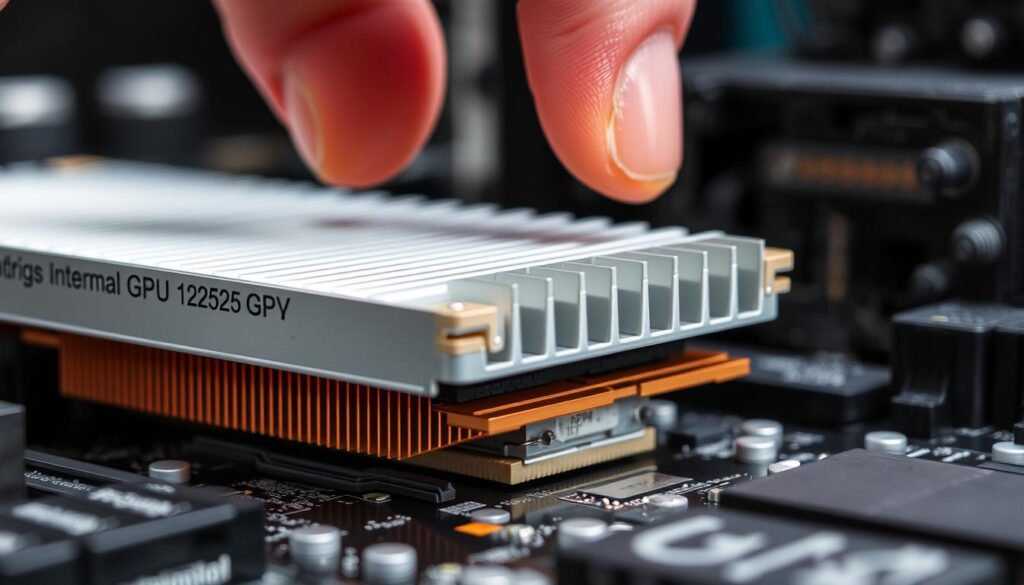
Start by placing your graphics card on an anti-static mat. Flip it to expose the flat back side—you’ll spot four screws forming a square pattern. Some models hide extra fasteners near the I/O bracket.
Grab your screwdriver with magnetic tips. Turn each screw counterclockwise in diagonal sequence—like defusing a bomb. This balanced approach prevents warping the circuit board. The heatsink should lift away smoothly, revealing the shiny GPU die underneath.
Preventing Static Electricity Issues
Static shock can fry components faster than overheating. Follow these precautions:
- Touch your computer case every 2 minutes to discharge built-up energy
- Work on wooden surfaces—plastic tables amplify static risks
- Store removed screws in labeled containers (magnetic trays work best)
Notice any cables connecting the heatsink to the board? Document their positions with phone photos before disconnecting. When reassembling, align the cooler’s side markings with the PCB—improper orientation causes uneven pressure.
Remember: patience beats brute force. If a screw resists, check for hidden fasteners rather than cranking harder. Your graphics card’s longevity depends on these careful steps.
Step-by-Step Process: How to Clean GPU and GPU Fans Safely
Precision separates effective maintenance from accidental damage. Follow these techniques to revive cooling systems without harming sensitive electronics.
Cleaning Fan Blades and Grills
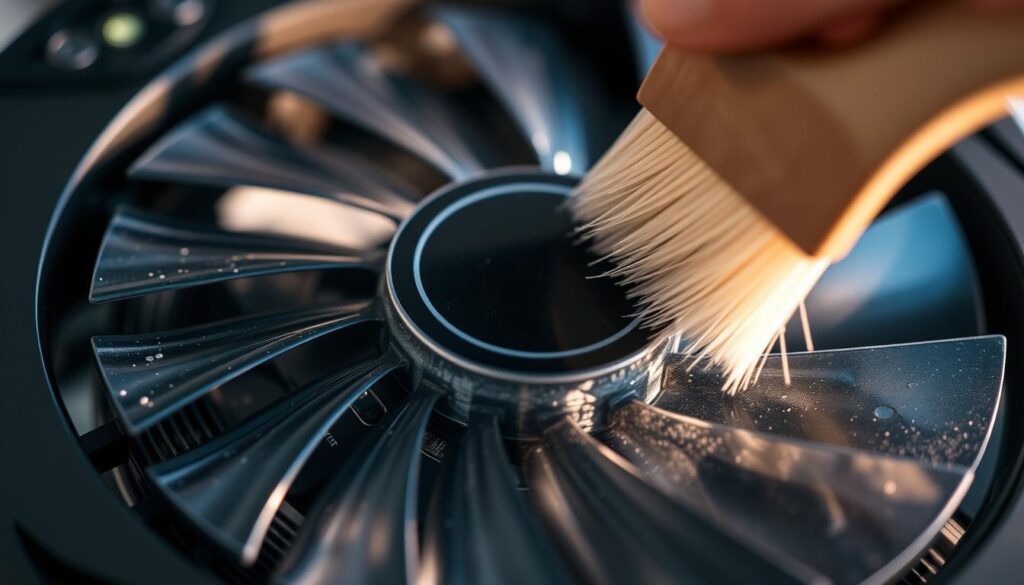
Secure each fan with your fingertip before blasting. This prevents blades from spinning wildly—a common mistake that wears out bearings. Use compressed air in quick bursts, angling the nozzle to push debris away from the motor housing.
Focus on grills where dust forms dense mats. Stiff-bristled brushes work better here than soft tools. Rotate the card to access all sides, checking for hidden buildup near mounting brackets.
Detailing the Motor and Fan Components
Examine the central hub where blades attach. Built-up grime here creates imbalance during operation. Dab a cotton swab in 90% isopropyl alcohol to dissolve sticky residues without soaking components.
Inspect wire connections leading to the motor. Look for frayed insulation or loose plugs—these often cause erratic fan speeds. Never submerge electrical contacts, but a dry brush removes surface particles safely.
Reapplying Thermal Paste After Cleaning
Old thermal compound hardens over time, losing its heat-transfer magic. Scrape off crusty residue with a plastic spudger, then polish the GPU die using alcohol wipes. Apply fresh paste in an X-pattern—this spreads evenly under pressure.
Reattach the heatsink using diagonal screw patterns. Uneven pressure creates air gaps that sabotage cooling. Tighten until snug, but avoid stripping delicate threads in the PCB.
Advanced Techniques and Troubleshooting
Ever found your gaming rig sounding like a leaf blower mid-match? Mastering advanced cleaning methods helps tackle stubborn grime while protecting delicate components. Let’s explore professional-grade approaches that balance thoroughness with safety.
Smart Airflow Management
Effective compressed air use requires strategic planning. Hold cans 4-6 inches from components and tilt at 45-degree angles—this creates swirling currents that lift dust without forcing particles deeper. Check this comparison table for optimal techniques:
| Technique | Distance | Angle | Best For |
|---|---|---|---|
| Surface Sweep | 8″ | 30° | Fan blades |
| Deep Clean | 4″ | 60° | Heatsink fins |
| Precision Blast | 2″ | 90° | Stubborn debris |
Rotate your graphics card during cleaning to access all side vents. For RTX 4090 owners, avoid direct airflow on capacitor clusters near the board’s edge—these sensitive areas require extra caution.
Knowing Your Limits
Persistent heat issues after cleaning often signal deeper problems. Consider professional help when encountering:
- Liquid cooling systems with sealed loops
- Warranty stickers covering critical screws
- Visible damage to fan motor housings
High-end gaming systems benefit from documented temperature logs. Track your card’s performance weekly—sudden spikes might indicate remaining dust nests or failing thermal pads. Remember: multiple gentle cleanings beat one aggressive session every time.
Maintenance Tips for Prolonged GPU Performance
Consistent care keeps your rig running smoothly for years. Like changing oil in a sports car, regular upkeep prevents breakdowns during crucial moments. Let’s explore strategies that balance protection with peak operation.
Establishing a Regular Cleaning Schedule
Match your maintenance rhythm to your lifestyle. Office setups in dust-free spaces need attention every 4-6 months. Moderate gaming rigs or homes with pets? Check every 60-90 days. Heavy users in humid or particle-filled rooms should mark calendars monthly.
| Environment | Inspection Frequency | Deep Clean Interval |
|---|---|---|
| Office/Clean Room | Every 3 months | 4-6 months |
| Moderate Gaming | Monthly | 2-3 months |
| Dusty/Humid Areas | Bi-weekly | 30 days |
Track heat patterns using free tools like HWMonitor. Rising temperatures often signal clogged fans before performance drops occur. This data-driven approach beats guessing games with calendars.
Optimizing System Airflow and Environment
Position your computer at desk height—floor placement sucks in 47% more debris according to PC builder surveys. Install magnetic dust screens on intake fans, washing them during routine cleanings.
Create positive air pressure inside cases. More intake than exhaust fans pushes air out through gaps, blocking dust entry. Pair this with room air purifiers to slash airborne particles by up to 80%.
Remember environmental factors: smoking near components triples gunk buildup. Pet owners should vacuum weekly and keep shedding friends away from system vents. Small changes add up over time, protecting your investment between cleanings.
Conclusion
Your graphics card’s longevity hinges on more than raw power—consistent care makes all the difference. Regular upkeep using a microfiber cloth and compressed air prevents dirt from becoming performance-crippling grime. These simple habits protect your computer investment while keeping fan noise at whisper levels.
Clean fan blades directly impact thermal efficiency. Lower temperatures mean smoother gameplay and faster renders. Whether you own a budget model or flagship graphics card, the maintenance principles remain identical.
Stick to the tips outlined here: gentle tools, methodical cleaning, and attention to hidden grime traps. Document temperature trends to catch issues early. That $10 can of air could save hundreds in component replacements down the road.
These skills extend beyond GPU care. Apply them to case fans, CPU coolers, and power supplies. A dust-free computer isn’t just reliable—it looks professional through transparent side panels.
Stay proactive. Wipe surfaces monthly, deep-clean quarterly, and replace thermal paste annually. Your rig will thank you with cooler operation and years of uninterrupted service.
FAQ
How often should I clean my graphics card and its fans?
Can I use household cleaning products on the GPU’s heatsink?
Is compressed air safe for cleaning fan blades?
Do I need to reapply thermal paste every time I clean?
What’s the biggest risk when disassembling a graphics card?
Can poor airflow cause faster dust buildup?
How do I clean stubborn dirt in tight spaces?
When should I consider professional cleaning services?

Follow Gill for the latest tips on CPU/GPU balance, PC upgrade guides, and hardware troubleshooting.Gill is the founder of PC Bottleneck Calculator, a free online tool designed to help users identify and fix performance issues in their PC builds. With years of hands-on experience in computer hardware and system optimization, Gill is passionate about making complex tech concepts simple and accessible for everyone—from beginners to gamers and PC builders. His mission is to help users get the most out of their systems through smart analysis and expert insights.
Follow Gill for the latest tips on CPU/GPU balance, PC upgrade guides, and hardware troubleshooting.
- NVIDIA RTX 6000 Ada Generation 48 GB Bottleneck Calculation - October 17, 2025
- Optimize Your GeForce RTX 5070 Performance with Our Bottleneck Tool - October 2, 2025
- GeForce RTX 5090 Bottleneck Calculator: Optimize Your Setup - October 1, 2025