Last Updated on September 2, 2025 by Gill
Ever wondered if your CPU or RAM is quietly holding back that new card you just bought?
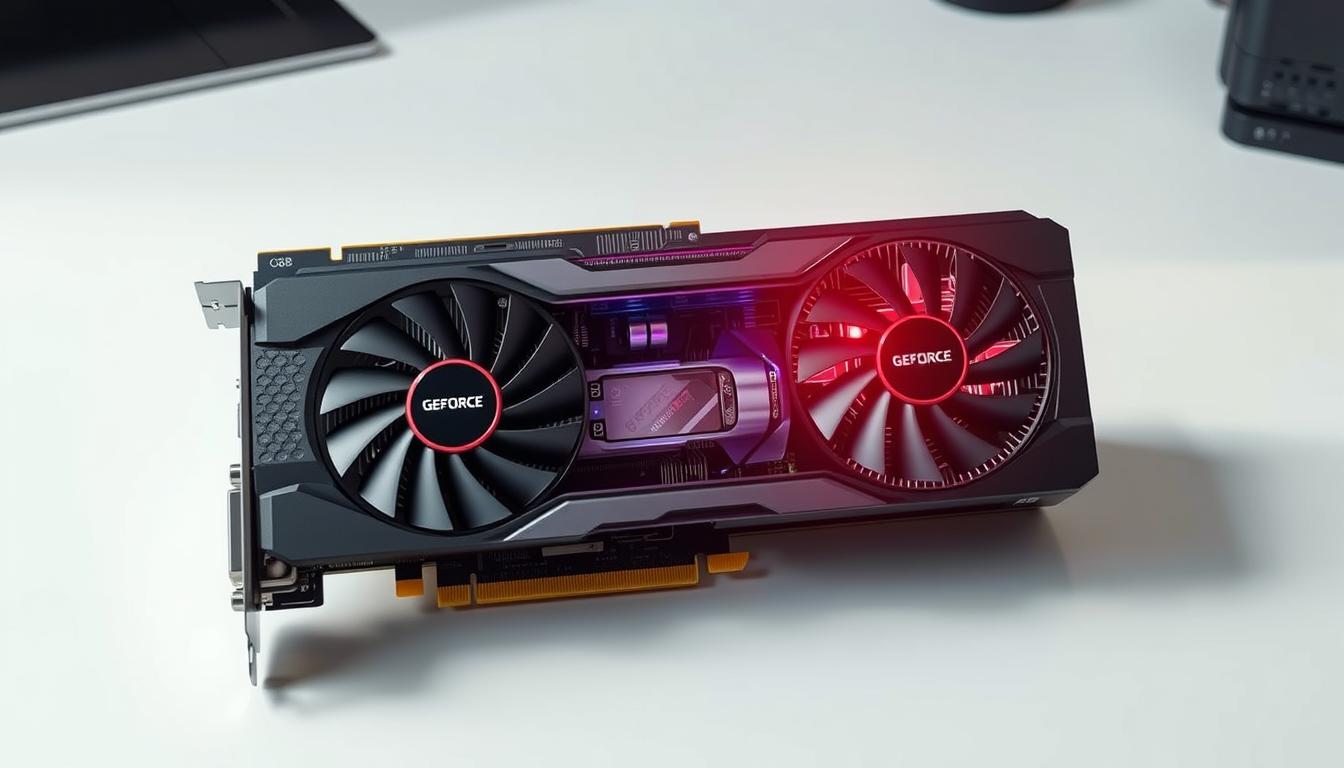
This guide gives a fast, friendly way to check. We explain how the Blackwell GB206-based gpu with 4,608 CUDA cores and 16 GB of GDDR7 changes real-world performance.
The card ships on a 128‑bit bus with 448 GB/s bandwidth, PCIe 5.0 x8 connectivity, and a 180W TGP. Benchmarks show solid gains over prior cards at 1440p and 4K, and modest increases in core counts and ray-trace throughput.
Use this tool to translate bottleneck percentages into expected fps and 1% lows. We also flag platform quirks like PCIe 3.0 dips of ~4% and how storage or RAM choices can cost you responsiveness.
Key Takeaways
- Check CPU, RAM, and platform first to predict fps and smoothness.
- Blackwell architecture and 16 GB GDDR7 shift the performance balance versus older cards.
- Expect meaningful uplifts at 1440p and 4K, plus better ray tracing in many titles.
- PCIe version and shared storage can quietly reduce frame stability.
- Follow simple entry steps in the calculator to get actionable tweaks before upgrading.
Why a Bottleneck Calculator Matters for GeForce RTX 5060 Ti 16 GB
Real-game gaps between GPUs and CPUs can turn a fast card into an underused component.
Predicting performance matters because lab numbers don’t always match what you see while playing. Real-world tests show the rtx 5060 outpacing the 4060 Ti by roughly 13–27% at 1440p and 20–39% at 4K, with 14–25% ray-trace gains. Small platform hits — like a ~4% dip on PCIe 3.0 x8 — change those outcomes.
The tool turns complex interactions (vram use, memory bandwidth, CPU limits) into a clear percentage so you know if the cpu or GPU is the limiter. That stops wasted upgrades and helps set realistic fps targets for the games you play.
“A calculator bridges synthetic benchmark gains and your hardware mix to forecast in-game results.”
- Shows when older CPUs choke high refresh esports titles.
- Accounts for PCIe 3.0 x8 losses so expectations stay accurate.
- Helps creators spot CPU or storage bottlenecks that cut throughput.
Understanding GPU and CPU Bottlenecks in Gaming and Creation
Frame rates and 1% lows tell the real story: which part of your hardware is doing too much work. That single weak link defines perceived smoothness during play and while rendering.
What “bottleneck” really means for FPS and 1% lows
Bottleneck refers to the component limiting fps or 1% lows at a given moment. At 1080p esports titles, the CPU often limits peak fps. At higher resolutions, the GPU takes charge and defines performance.
1% lows measure stutter and frame pacing. They depend on CPU scheduling, game engine behavior, and how fast assets stream from storage.
How VRAM, memory bandwidth, and PCIe lanes affect performance
VRAM shortfalls cause hitching when textures swap to system RAM. The rtx 5060’s 16 GB buffer helps reduce these texture swaps in modern titles like Spider‑Man and Hogwarts Legacy.
Memory bandwidth feeds shaders; the 448 GB/s GDDR7 uplift lowers stalls in dense scenes. PCIe 5.0 x8 is strong on modern boards, though testing shows about a ~4% dip on older PCIe 3.0 x8 links when assets overflow VRAM.
- CPU clocks and per-core efficiency shape consistent frame times in open worlds.
- Creators see mixed effects: CUDA/RT/Tensor help in Blender, but some exports remain CPU or I/O bound.
“Knowing which part limits you helps prioritize upgrades and tuning.”
GeForce RTX 5060 Ti vs 4060 Ti: Key Specs That Influence Bottlenecks
A close look at core counts, RT throughput, and memory bandwidth explains why one card pulls ahead in modern titles.
Blackwell versus Ada matters more than raw CUDA counts. The Blackwell GB206 adds a modest CUDA lift to 4,608 cores and upgrades to 5th‑gen Tensor units and much faster RT math (72 TFLOPS). That combination boosts ray‑traced effects and upscaling performance compared with the Ada AD106 design used in the rtx 4060 Ti.
Memory and bus remain crucial. Both cards keep a 128 bit interface, but the jump to GDDR7 pushes effective throughput to 448 GB/s on the newer model versus 288 GB/s on the older card. That bandwidth cut stalls in texture-heavy scenes and improves sustained performance for creators and gamers.
PCIe and platform notes
The newer board uses PCIe 5.0 x8, which helps peak data flow. On older PCIe 3.0 systems, testing shows about a 4% average drop for x8 links in VRAM‑heavy loads.
- Blackwell’s RT/Tensor gains give outsized ray‑trace and upscaling wins.
- Higher bandwidth reduces texture streaming stalls and smooths fps.
- Expect slightly higher power draw (180W) and better value at MSRP, though retail prices vary.
“Architectural upgrades and faster memory matter more than bus width alone when you compare midrange cards.”
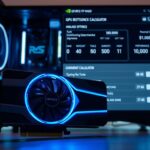
GeForce RTX 5060 Ti 16 GB Bottleneck Calculator
Start by selecting the exact GPU profile so the tool models GDDR7 bandwidth and improved RT math correctly.
Why this matters: observed testing shows roughly +13–27% performance at 1440p and +20–39% at 4K versus the prior midrange card. Ray tracing often gains about ~14–25% in real titles. Older PCIe 3.0 slots can trim results by ~4% in VRAM‑heavy loads.
Enter your CPU model, PCIe version, RAM speed, and cooling to reveal whether the cpu, gpu, or platform limits fps and smoothness.
- Pick the exact rtx 5060 profile to reflect bandwidth and RT capabilities.
- Choose resolution and refresh targets to see shifts between 1080p, 1440p, and 4K.
- Add game profiles—engines vary in CPU scaling and VRAM use.
- Toggle PCIe to estimate losses on older boards and save configs for comparisons.
“Read both the percent result and the recommended actions to fix CPU‑bound, GPU‑bound, or platform issues.”
Before You Start: Gather Your System Details
Collecting precise system data first makes the results meaningful and actionable. Accurate inputs help the tool model real-world performance and avoid misleading recommendations.
CPU model, clocks, and cooling
Write down your exact CPU model and observed boost clocks. Single-thread limits can cap high-refresh 1080p fps, and thermal throttling lowers sustained results.
Note cooler type and any temperature peaks during gaming or rendering.
Motherboard PCIe version and slot configuration
Confirm whether your board runs PCIe 5.0 x8 or an older PCIe 3.0 link. The pcie 5.0 x8 configuration is optimal for the rtx 5060 profile; PCIe 3.0 can show ~4% average dips in heavy loads.
RAM capacity, speed, and dual-channel status
Record total memory, clock speed, and whether modules run in dual channel. Slow or single-channel memory hurts 1% lows and overall system performance.
Monitor resolution, refresh rate, and target FPS
List your display resolution and refresh rate. Pick realistic fps targets per genre—esports need high fps, AAA games may target stability and quality.
- Check storage type (NVMe vs SATA) and whether an M.2 slot shares lanes with the GPU.
- Document driver versions, power supply rating, and background apps like streaming or overlays.
“A complete checklist reduces guesswork and improves result accuracy.”
Step‑by‑Step: How to Use the Bottleneck Calculator for Accurate Results
Start by choosing the exact GPU preset so the tool models memory and ray‑trace gains correctly.
Selecting the exact GPU: RTX 5060 Ti 16 GB GDDR7
Pick the rtx 5060 16gb preset so bandwidth and RT uplift are modeled. This ensures the tool applies the 448 GB/s GDDR7 profile for real‑world testing.
Entering CPU choices from popular picks
Add scenarios for common CPUs to compare headroom and cost. Try the Ryzen 7 9800X3D (~$449.99), 7800X3D (~$366.93), and 7600X (~$179.97).
These entries show how each chip affects frame pacing and sustained fps under load.
Setting resolution targets: 1080p, 1440p, and 4K
Set display targets to see where the system shifts from CPU‑bound to GPU‑bound. Use 1080p for high refresh esports and 1440p for balanced quality and fps.
Applying game profiles based on competitive vs AAA titles
Choose competitive profiles (CS2, Fortnite) or AAA profiles (Cyberpunk 2077, Starfield). Engine demands change CPU scaling and texture use.
Reading the bottleneck percentage and recommended actions
Read the percent result and follow the advice. If the CPU limits fps at 1080p, consider higher resolution or tuning settings to improve balance.
- Pick the rtx 5060 preset so memory and RT math match tests.
- Add Ryzen 7 9800X3D, 7800X3D, and 7600X to compare headroom and cost.
- Set 1080p, 1440p, and 4K targets to reveal load shifts.
- Choose competitive vs AAA profiles to reflect different CPU scaling.
- Toggle PCIe version to see expected losses on older boards.
| CPU | Approx. US Price | Use Case |
|---|---|---|
| Ryzen 7 9800X3D | $449.99 | High‑end 1440 gaming, strong fps stability |
| Ryzen 7 7800X3D | $366.93 | Great value for AAA at 1440p |
| Ryzen 5 7600X | $179.97 | Budget builds, higher risk of CPU limits at 1080p |
“Compare saved profiles to weigh cost versus expected performance before you buy.”
Interpreting Your Results: What the Percentages Mean
Read the percent as a direction, not an absolute verdict. The result points to which part of your system is limiting usable frame rates and smoothness.
CPU‑bound vs GPU‑bound scenarios and how to respond
CPU-bound results mean your processor caps fps. Try lowering CPU-heavy settings, raise resolution, or consider a stronger CPU to boost gaming performance.
GPU-bound outcomes show the graphics card is the limiter. Use DLSS or lower demanding presets to reach your fps goals without overspending.
Translating bottleneck scores into real‑world FPS and 1% lows
In tests, the 5060 family improved 1% lows notably in Spider‑Man and Hogwarts Legacy. Average uplifts ranged 13–27% at 1440p and 20–39% at 4K. Use those bands to estimate expected fps gains.
- A 10–20% percent result can often be fixed with memory tweaks and killing background tasks.
- Large GPU limits at 4K call for upscaling and RT preset adjustments per title.
- If PCIe bandwidth is flagged, move the graphics card to the primary slot and avoid lane-sharing devices.
“Use 1% low estimates to judge smoothness—small gains here feel bigger than average fps increases.”
Quick Wins: Settings Tweaks to Reduce Bottlenecks Fast
Small changes to settings can unlock big fps gains without spending a dime. These adjustments help balance CPU and GPU load and improve perceived smoothness in modern titles.
Resolution scaling, DLSS, and per‑title presets
Enable DLSS Quality or Balanced to raise fps while keeping a sharp image. Test per title to hit your refresh target.
Use resolution scaling if your monitor and goals need a middle ground between clarity and speed.
VRAM‑heavy textures and streaming at 1440p and 4K
Right‑size texture settings at 1440p/4K to preserve vram headroom. Avoid max textures if 1% lows drop or swapping starts.
Remember the card shows strong performance uplifts at higher resolutions; tuning textures often yields the best tradeoff.
Background tasks, power plans, and driver hygiene
Close unneeded apps, disable overlays, and set Windows to High Performance. These steps free CPU threads and reduce frame variance.
Keep graphics drivers current and do clean installs when major updates arrive. If you stream, use NVENC and reserve threads to avoid encoder contention.
- Lower CPU‑heavy options first (crowds, physics, shadows) for better 1080p fps.
- Align frame limiters with your monitor to cut latency and stutter.
- Use per‑game presets as a base, then tune post‑processing for smoother play.
“Small, targeted tweaks typically boost smoothness far more than chasing hardware upgrades.”
CPU Pairing Guide for RTX 5060 Ti 16 GB
Choosing the right processor defines whether you reach high refresh targets or run into avoidable limits. This short guide helps match common CPUs to the card’s real-world behavior and US prices.
Best value CPUs in the US market right now
Ryzen 7 9800X3D (~$449.99) and 7800X3D (~$366.93) lead for high‑frame and stable 1% lows. The 7600X (~$179.97) is a sensible budget pick when you accept capped fps or target 1440p/4K quality.
When to choose a 9800X3D vs 7800X3D vs 7600X
For high‑refresh 1080p esports, pick the 7800X3D or 9800X3D to minimize CPU limits and keep frame pacing tight.
For mixed 1440p use, the 7800X3D offers the best price-to-performance balance. If you mainly play AAA at 1440p/4K, the card usually becomes the limiter and the 7600X can suffice.
Avoiding mismatches that inflate CPU bottlenecks at high FPS
- Don’t pair the card with very old chips if you chase 200+ fps; you’ll waste GPU headroom.
- Consider cooling and platform longevity; BIOS support and DDR5 costs affect upgrade paths.
- If you stream or multitask, favor larger cache and more cores to keep the game thread smooth.
| CPU | Approx. US Price | Best Use |
|---|---|---|
| Ryzen 7 9800X3D | $449.99 | High‑end 1080/1440 esports |
| Ryzen 7 7800X3D | $366.93 | 1440p mixed use, best value |
| Ryzen 5 7600X | $179.97 | Budget builds, 1440p/4K GPU‑bound |
“Right pairing maximizes performance and saves you from unnecessary upgrades.”
PCIe, Motherboards, and Storage: Platform Factors You Shouldn’t Ignore
Motherboard lanes and storage layout can make or break streaming performance in open-world games.
PCIe 5.0 x8 gives the rtx 5060 its best headroom. Testing shows an average ~4% performance dip on PCIe 3.0 when the card runs on an x8 link. VRAM‑heavy titles can suffer more when texture swaps push traffic across the bus.
Install the card in the top x16 physical slot so it gets full lane access and stable signaling. Check your board manual for M.2 and SATA lane sharing; some slots reduce GPU lanes or disable ports when populated. Favor a PCIe 4.0/5.0 platform to avoid extra limits on the x8 link.
“If assets stream slowly, the symptom often looks like GPU slowness even when the hardware is fine.”
- Keep chipset and storage drivers updated to protect asset streaming performance.
- Use fast NVMe drives for open worlds and avoid sharing lanes with the GPU.
- Monitor vram and adjust texture settings if swapping causes PCIe traffic spikes.
- Ensure good airflow around the card to prevent thermal throttling that mimics bandwidth issues.
Expected Performance by Resolution: Calibrate Your Targets
Pick a resolution goal first — it defines whether the CPU or GPU will lead your frame count.
1080p for high refresh esports vs CPU limits
At 1080p, many esports titles hit CPU ceilings on midrange systems. If you chase 240 Hz, tune crowds, shadows, and physics first.
Consider a stronger processor when average fps and 1% lows stay below your refresh target.
1440p sweet spot: 13–27% uplifts vs 4060 Ti across modern titles
1440 gaming often flips load to the GPU. Expect roughly 13–27% higher averages and smoother 1% lows versus the rtx 4060 across modern games.
Examples: Cyberpunk 2077 at 1440p ~79 vs ~64 fps, Spider‑Man ~128 vs ~109, and CS2 ~398 vs ~321 fps.
4K headroom: 20–39% uplifts and when you’ll still want DLSS
At 4K the faster memory and larger buffer matter most. Gains sit around 20–39%, but DLSS or similar upscalers remain key for smoothness in heavy titles.
Examples: Cyberpunk 4K ~40 vs ~29 fps; God of War Ragnarök ~62 vs ~49 fps shows real responsiveness wins.
“Set realistic fps targets by genre: esports for high fps, AAA for visuals with upscaling.”
| Resolution | Typical Gain vs rtx 4060 | Representative Title & FPS (New vs Old) |
|---|---|---|
| 1080p | Small — CPU dependent | CS2: 398 vs 321 fps (1440 shown, 1080 similar scaling) |
| 1440p | 13–27% | Cyberpunk: 79 vs 64 fps; Spider‑Man: 128 vs 109 |
| 4K | 20–39% | Cyberpunk: 40 vs 29 fps; God of War: 62 vs 49 |
- Tip: Target per-genre goals: esports = latency and high fps, AAA = visuals plus DLSS, sims = steady 1% lows.
Ray Tracing and Frame Generation on RTX 5060 Ti
Hardware and software gains combine to make ray‑traced scenes more playable at 1440p than before.
Expect roughly 14–25% RT gains versus the previous midrange card in real titles at 1440p. Tests across seven games show that newer RT and tensor units lift average fps and improve noisy shadow denoising. That yields better overall gaming performance and steadier 1% lows in many scenes.
Practical per-title tips
- Spider‑Man Remastered: pair Very High RT with DLSS Quality for crisp visuals and strong fps gains.
- Cyberpunk 2077 RT Ultra: use DLSS Balanced or Quality and lower RT shadows/reflections to stabilize 1% lows.
- Alan Wake II: boost upscale settings, keep RT modest, and cap fps to smooth pacing.
- Metro Exodus Enhanced: RT Normal + DLSS Quality gives great denoising without big performance loss.
DLSS and frame generation guidance
Use dlss first to lift performance while keeping clarity. Where supported, try multi‑frame generation for higher apparent fps.
Note: frame generation can raise perceived smoothness but may add latency. Avoid it in twitch competitive modes.
“Calibrate RT settings per title—small reflection cuts often help more than turning ray tracing off entirely.”
| Title | Recommended RT | Best Upscale |
|---|---|---|
| Spider‑Man Remastered | Very High | DLSS Quality |
| Cyberpunk 2077 | RT Ultra (tweak shadows) | DLSS Balanced/Quality |
| Alan Wake II | Medium RT | DLSS Quality + FPS cap |
| Metro Exodus Enhanced | RT Normal | DLSS Quality |
Memory Matters: 16 GB GDDR7 and 448 GB/s Bandwidth Advantages
When games stream high-res assets, having extra VRAM plus high memory throughput keeps play smooth.
Why the 16 GB buffer helps textures and 1% lows
The larger 16 GB frame buffer reduces asset swaps to system RAM. That directly cuts stutter in open-world titles and stabilizes 1% lows in fast scenes.
Testing shows smoother 1% lows in Hogwarts Legacy and Spider‑Man at higher settings. Those gains come from fewer texture reloads and steadier frame pacing.
When a 128‑bit bus is fine because of faster GDDR7
The 128 bit interface might look narrow on paper, but GDDR7’s higher data rate raises throughput to 448 GB/s. That is about a 56% uplift over a 288 GB/s baseline and feeds shaders more consistently.
At 1440p and 4K, bigger textures and ray tracing demand both buffer space and bandwidth. The memory and vram synergy here is why the rtx 5060 scales better in heavy scenes than core counts alone would predict.
- Set textures high with confidence, but watch total vram use.
- Open-world streaming sees fewer stalls during fast traversal.
- Content creators get larger scenes in viewport without constant swapping.
“More bandwidth plus a larger buffer gives the most visible gains in texture-heavy games and tight 1% lows.”
Market Context: Where RTX 5060 Ti Sits Against AMD and NVIDIA Neighbors
A close look at competing offerings reveals when ray tracing or raw raster power should sway your choice.
Positioning matters: the geforce rtx 5060 often equals or edges the RX 7700 XT at 4K in several titles, while the RX 7800 XT usually leads by about 15–20% in pure raster workloads.
Positioning vs RX 7700 XT and RX 7800 XT in raster and RT
In raster performance, these cards trade blows. The 7800 XT wins more often by mid‑teens percentages. In ray tracing, the rtx 5060 clearly holds an advantage over AMD’s midrange parts, making it a stronger pick for RT‑heavy games.
How the newer RX 9060 and rtx 5060 affect midrange choices
The RX 9060 (OEM) sits near ~$275 and reportedly runs ~2% slower than the rtx 5060, which pressures lower price tiers. With the rtx 5060 at about $299.99 and RX 9060 XT nearer $389.99, pricing and availability shift value arguments fast.
“If RT and DLSS matter, the rtx 5060 is compelling; for raw raster value, watch RX 7800 XT deals.”
- Compare per‑title bench results before buying.
- Factor encoders, software stack, and warranty into final choice.
- Time purchases around sales to stretch your budget.
Pricing, Availability, and “Qualifying Purchases” Disclaimers
Watch pricing closely after launch; street numbers often swing well below or above MSRP in the first weeks. The launch MSRP was $429, cheaper than the prior midrange’s $499, yet early retail and popular listings can show the rtx 5060 near $299.99.
Compare offers, not just stickers. Look for bundles, rebates, and total cost after taxes and shipping. A higher sticker with a game bundle can beat a bare‑bones lower tag once you add return policies and delivery fees.
How to hunt better deals and read disclosures
- Use deal trackers and set alerts to catch brief discounts on cards and CPUs.
- Check multiple reputable sellers; availability can swing quickly after restocks.
- Factor taxes, shipping, and returns into effective pricing before you buy.
“As an Amazon Associate I earn from qualifying purchases.”
| Item | Launch MSRP | Typical Street Price |
|---|---|---|
| rtx 5060 model | $429 | ~$299.99 (varies) |
| Ryzen 7 9800X3D | $449.99 | $449.99 (retail) |
| Notes | Expect divergence | Track deals, bundles, qualifying purchases |
Troubleshooting Inaccurate Calculator Results
If results look off, start by checking firmware and memory settings before blaming the graphics card. Small platform issues can skew the tool’s estimates and make expected performance feel wrong in real play.
Run quick checks first: a brief firmware or BIOS mismatch, wrong RAM profile, or thermal throttling often explains lost fps and odd frame pacing.
Outdated BIOS, RAM misconfigurations, and thermal throttling
Update motherboard BIOS and chipset drivers. Old microcode can cap boost behavior and hide the true hardware headroom.
Verify RAM speed, timings, and dual‑channel status. If XMP/EXPO is off, you can see lower fps and weaker 1% lows.
- Monitor CPU and GPU temps — throttling erodes sustained performance.
- Check slot placement and monitor cabling so the card drives the display port.
- Review Windows power plans and PCIe power saving modes.
Driver versions and clean installs for NVIDIA GPUs
Use DDU for a clean uninstall when switching drivers. Lingering driver conflicts can alter video scaling and drop performance unexpectedly.
Keep drivers current: nvidia geforce updates have changed observed results in repeat tests. Disable overlays and recording tools that hook into games and affect frametimes.
“A quick firmware, memory, and driver sweep usually restores expected performance faster than swapping parts.”
Re-test with the same scene and settings after fixes to confirm results. Small game patches or background apps will change measured outcomes, so document conditions before you compare.
Conclusion
Conclusion
The geforce rtx 5060 delivers clear, real-world gains. Expect roughly +13–27% at 1440p and +20–39% at 4K versus the prior midrange card. Ray tracing runs better and 1% lows feel smoother in many modern games.
Use the tool to find if your CPU limits fps at 1080p or if the GPU leads at higher resolutions. Watch for a ~4% hit on older PCIe 3.0 systems and for price swings from the initial $429 launch.
Quick wins: tune DLSS/upscaling, keep drivers and BIOS updated, and pair a suitable CPU to unlock peak performance. Revisit settings after major patches and use rtx 5060 support resources as drivers evolve.
FAQ
What does "bottleneck" mean for FPS and 1% lows?
How does VRAM and memory bandwidth affect gaming performance?
Will PCIe version cause noticeable slowdowns?
How accurate is a bottleneck calculator for real-world FPS?
Which CPUs pair best to avoid CPU-bound scenarios at 1080p high refresh?
Should I prioritize resolution or settings to reduce bottlenecks?
How do background tasks and power plans affect bottleneck readings?
Can VRAM-heavy textures cause bottlenecks at 1440p?
How should I enter my system details into the calculator for best results?
Are driver versions and thermal throttling common causes of inaccurate results?
Will enabling ray tracing or frame generation change bottleneck behavior?
How much difference should I expect versus a previous generation midrange card?
Is PCIe 5.0 x8 enough or should I insist on x16 for gaming?
How do I interpret a high CPU‑bound percentage from the calculator?
What quick tweaks reduce bottlenecks right away?
Do storage and M.2 bandwidth impact in‑game bottlenecks?
What should I do if the calculator suggests a mismatch but my gameplay feels fine?

Follow Gill for the latest tips on CPU/GPU balance, PC upgrade guides, and hardware troubleshooting.Gill is the founder of PC Bottleneck Calculator, a free online tool designed to help users identify and fix performance issues in their PC builds. With years of hands-on experience in computer hardware and system optimization, Gill is passionate about making complex tech concepts simple and accessible for everyone—from beginners to gamers and PC builders. His mission is to help users get the most out of their systems through smart analysis and expert insights.
Follow Gill for the latest tips on CPU/GPU balance, PC upgrade guides, and hardware troubleshooting.
- NVIDIA RTX 6000 Ada Generation 48 GB Bottleneck Calculation - October 17, 2025
- Optimize Your GeForce RTX 5070 Performance with Our Bottleneck Tool - October 2, 2025
- GeForce RTX 5090 Bottleneck Calculator: Optimize Your Setup - October 1, 2025